

Online Keyboard Shortcuts
OnlineShortcuts.com provides a comprehensive reference of essential keyboard shortcuts for Windows, MacOS, and Linux to boost your productivity.
product Details
Explore More
Alternatives

About Online Keyboard Shortcuts
Online Keyboard Shortcuts, available at OnlineShortcuts.com, is a comprehensive and meticulously organized digital resource dedicated to cataloging the most essential keyboard shortcuts across the three major operating systems: Windows, macOS, and Linux. The product serves as a definitive reference guide for users who want to enhance their computing efficiency by reducing reliance on the mouse or trackpad. A keyboard shortcut is defined as a combination of keys that allows users to perform tasks more quickly and with greater ease, fundamentally streamlining workflows. This website curates the most important shortcuts, presenting them in a clear, categorized format that includes system-wide commands, operating system-specific key combinations like the Windows Key shortcuts, and application-specific shortcuts for tools such as Command Prompt, File Explorer, and web browsers. The primary audience includes professionals, students, power users, and anyone seeking to optimize their daily computer interactions. The value proposition lies in its ability to centralize fragmented knowledge into one accessible platform, offering users a faster path to proficiency. By providing downloadable cheat sheets in PDF and PNG formats, the product ensures that users can take these productivity tools offline, making it an indispensable companion for learning and mastering keyboard navigation on any major computing platform.
Features
Comprehensive Operating System Coverage
The website provides an extensive library of keyboard shortcuts tailored specifically for Windows, macOS, and Linux operating systems. This feature ensures that users across different platforms can find relevant commands without needing to search multiple sources. The shortcuts are organized by system-wide commands, such as Alt + F4 for closing windows on Windows, and include platform-specific keys like the Windows Key (Win) or Command Key on macOS. This comprehensive approach eliminates confusion and allows users to learn the unique shortcuts for their preferred environment, covering everything from basic navigation to advanced system management tasks.
Categorized and Structured Shortcut Lists
The shortcuts are presented in well-defined categories that enhance usability and learning. Users can navigate between sections such as "Windows Systemwide Keyboard Shortcuts," "Windows Key Shortcuts," and "Application Specific Keyboard Shortcuts" for tools like Command Prompt, File Explorer, and Text Editing. This logical organization allows users to quickly locate the specific shortcuts they need for their current task, whether it is managing virtual desktops with Win + Ctrl + D or editing text with Ctrl + B for bold. The structured layout reduces cognitive load and makes the learning process more intuitive for both beginners and experienced users.
Downloadable Cheat Sheets in Multiple Formats
A standout feature of Online Keyboard Shortcuts is the ability to download the entire shortcut collection as a handy PDF file or PNG image. Users can choose between a dark theme PNG, a light theme PNG, or a PDF document for offline access. This feature is particularly valuable for users who want to print a physical reference, save it to their desktop for quick consultation, or study shortcuts without an internet connection. The availability of multiple formats ensures that the resource is adaptable to different user preferences and environments, from office desks to mobile devices.
Frequently Asked Questions with Humorous Engagement
The website includes a Frequently Asked Questions section that addresses common user inquiries with a blend of factual information and lighthearted humor. Questions such as "Can I request a new software to be added?" are answered with playful responses like "think of a keyboard shortcut really hard and we will mentally receive your message," while still providing genuine answers to practical concerns like shortcut accuracy and mobile accessibility. This feature makes the learning experience more enjoyable and memorable, reducing the intimidation factor often associated with technical documentation.
Use Cases
Boosting Daily Productivity for Office Workers
Office professionals who spend significant time on computers can use this resource to master shortcuts that dramatically speed up routine tasks. For example, learning Win + D to show and hide the desktop, Alt + Tab to switch between open apps, and Ctrl + Shift + Esc to open Task Manager allows users to navigate their workflow without lifting their hands from the keyboard. This efficiency gain is particularly valuable during multitasking sessions, such as managing multiple documents, spreadsheets, and communication tools simultaneously.
Streamlining Software Development and IT Workflows
Developers and IT professionals can leverage application-specific shortcuts for Command Prompt and File Explorer to accelerate their work. Commands like F7 to view command history in Command Prompt or Ctrl + Shift + N to create new folders in File Explorer reduce time spent on repetitive actions. Additionally, virtual desktop shortcuts like Win + Ctrl + D for creating new desktops and Win + Ctrl + Left/Right Arrow for switching between them enable developers to organize their coding environments, terminals, and documentation across separate workspaces for better focus and efficiency.
Enhancing Web Browsing and Research Efficiency
Students and researchers who spend hours online can use the web browser shortcuts section to navigate more effectively. Commands such as Ctrl + T to open a new tab, Ctrl + Shift + T to reopen a closed tab, and Ctrl + L to select the address bar allow for rapid browsing and quick access to search queries. These shortcuts reduce the need for mouse clicks, enabling users to follow research trails, open multiple sources, and manage tabs with minimal interruption to their reading flow.
Learning and Teaching Computer Literacy
Educators and self-learners can use Online Keyboard Shortcuts as a teaching aid for computer literacy courses or personal skill development. The categorized lists provide a structured curriculum for learning essential shortcuts, starting from basic system commands like Ctrl + C for copy and Ctrl + V for paste, to more advanced functions like Win + V for clipboard history. The downloadable cheat sheets serve as excellent study materials that can be distributed in classrooms or used for self-paced learning, helping users build muscle memory for efficient computing.
Frequently Asked Questions
What is Computer Keyboard Shortcuts?
Computer Keyboard Shortcuts, hosted at OnlineShortcuts.com, is a comprehensive guide to keyboard shortcuts for a wide variety of software applications and operating systems. It is designed to help users improve their productivity by providing quick and easy access to commonly used commands and hotkeys for Windows, macOS, and Linux platforms. The resource covers system-wide shortcuts, operating system-specific commands, and application-specific shortcuts for tools like web browsers, File Explorer, and Command Prompt.
How do I use Computer Keyboard Shortcuts?
Using the website is straightforward. Simply browse the list of shortcuts organized by operating system and category to find the combination you need. Each shortcut is displayed with its key combination and a clear description of its function. For example, you can find Win + I to open Settings on Windows or learn how to create a screenshot with Win + Shift + S. The website also offers downloadable cheat sheets in PDF and PNG formats for offline reference and study.
Can I request a new software to be added?
Users are encouraged to request new software to be added to the collection. The website humorously suggests that you can do this by thinking of a keyboard shortcut really hard, and the team will mentally receive your message. While the response is playful, it indicates that the creators are open to expanding their library based on user needs, though the process is informal and not guaranteed.
Are the shortcuts updated regularly?
The update frequency for the shortcuts is not strictly defined. The website acknowledges that software updates can sometimes change hotkeys, so it is always good practice to verify shortcuts with the specific version of the software you are running. While the team may make updates periodically, users should rely on the resource as a general guide and check official documentation for mission-critical applications.
Similar to Online Keyboard Shortcuts

tally counter
Online tally counter for attendance, workouts, inventory, visitors, sports scores, habits, and everyday counting.

iHatePosting
Create once, tailor for each platform, and schedule posts across 14 social networks from one simple dashboard.

PDFWix
PDFWix is a free online PDF toolkit designed to make everyday PDF tasks simple, fast, and private.
PDFKing
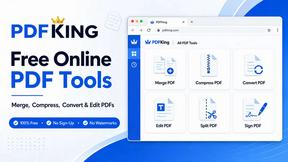
Free online PDF tools to merge, compress, convert, edit, sign, and manage documents—no signup, watermarks, or daily limits.



Video2URL
Turn videos, images, PDFs, and files into shareable links with fast uploads and privacy-friendly controls.