

RecordFlow
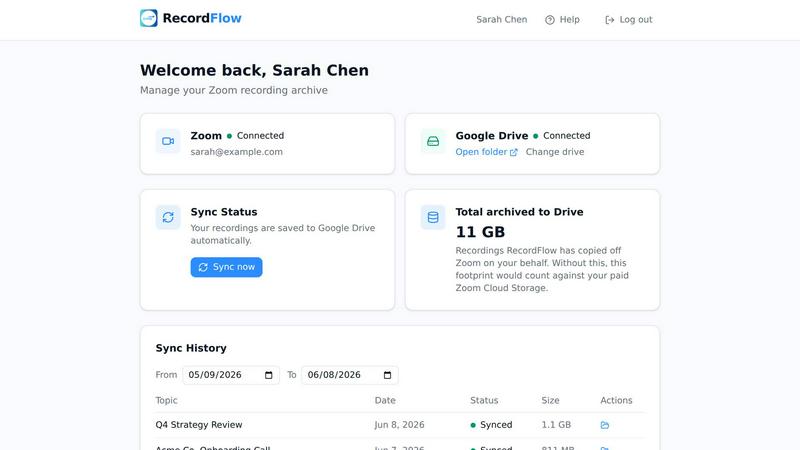
RecordFlow automatically saves Zoom cloud recordings to Google Drive and can delete them from Zoom to free storage.
product Details
Explore More
Alternatives
About RecordFlow
RecordFlow is a specialized automation tool designed to eliminate the manual, time-consuming process of downloading, organizing, and transferring Zoom cloud recordings to Google Drive. The product addresses a critical pain point for professionals who rely on Zoom recordings as part of their daily workflow: the constant battle against Zoom's limited cloud storage and the risk of losing important recordings. RecordFlow works by integrating directly with both Zoom and Google Drive through secure OAuth 2.0 authentication. Once a user completes a simple 60-second setup process — signing into Zoom, connecting their Google Drive, and selecting a destination folder — the tool operates autonomously. It monitors for new Zoom cloud recordings and transfers them to the designated Google Drive location within minutes of each meeting ending. Beyond new recordings, RecordFlow also performs a one-time backfill of recordings from the past two years, ensuring a complete archive. The product is built for coaches, consultants, therapists, professors, small teams, and IT administrators who cannot afford to lose a single recording. It handles all file types Zoom produces: video in MP4 format, audio in M4A format, transcripts in VTT and Google Doc format, and chat logs. RecordFlow is designed with reliability at its core, featuring chunked transfers for large files, smart deduplication, automatic retries on failure, and an optional auto-delete feature that removes recordings from Zoom only after a verified copy exists in Google Drive. Critically, RecordFlow never stores recordings on its own servers; files stream directly from Zoom to Google Drive, and all data is encrypted in transit and at rest using AES-256 encryption. The tool is approved by Zoom after a security review and is available on both the Zoom App Marketplace and Google Workspace Marketplace.
Features
Automatic and Continuous Sync
RecordFlow eliminates the need for manual downloads and uploads by automatically transferring every new Zoom cloud recording to Google Drive within minutes of the meeting ending. This process runs continuously in the background without any user intervention. For new users, the system also performs a one-time backfill, scanning and transferring all existing cloud recordings from the past two years. This ensures that not only future recordings but also valuable past content is safely archived in Google Drive from the moment setup is complete.
Comprehensive File Archiving
Every file type generated by a Zoom cloud recording is captured and transferred to Google Drive. This includes the primary video file in MP4 format, the audio-only track in M4A format, the meeting transcript in VTT format, and the complete chat log. RecordFlow goes a step further by converting the transcript into a formatted Google Doc, making it searchable and editable directly within Google Drive. For users with early access, the tool can also archive AI Companion transcripts and meeting summaries from meetings that did not have a cloud recording, saving them as Google Docs and Markdown files.
Optional Auto-Delete with Safety Verification
To help users manage Zoom's limited cloud storage, RecordFlow offers an optional auto-delete feature. When enabled, the system will automatically delete the recording from Zoom's cloud once it has verified that the complete copy has been successfully transferred and is safely stored in Google Drive. This verification step is critical; it ensures that no recording is ever deleted from Zoom before a confirmed backup exists. This feature frees up Zoom storage space automatically, preventing the common problem of hitting storage limits and being blocked from recording new meetings.
Reliable Transfer for Large Files and Deduplication
RecordFlow is engineered for reliability, especially when handling large files such as hour-long meetings or multi-hour training sessions. The system uses chunked file transfers, which break large files into smaller segments that are uploaded sequentially. This prevents timeouts and failed uploads that can occur with single-stream transfers. Additionally, RecordFlow employs smart deduplication logic, meaning it is safe to re-run the sync process without creating duplicate files in Google Drive. Automatic retries are built in, so if a transfer fails due to a network interruption, the system will attempt it again without losing progress.
Use Cases
Coaches and Consultants Archiving Client Sessions
Coaches, therapists, and consultants often record multiple client sessions each week. These recordings are not only internal records but also deliverables that clients expect to receive. Zoom's 5 GB Pro storage limit fills up rapidly, forcing professionals to constantly manage storage or risk losing recordings. RecordFlow automates the entire workflow: each session is automatically transferred to a specific folder in Google Drive, organized by year and date. The therapist or coach can then share a direct link from Drive with the client, knowing the recording is securely backed up and will not be accidentally deleted.
Educational Institutions Preserving Lecture Content
Professors and educators who record lectures for online or hybrid classes need a permanent, accessible archive for students. Relying solely on Zoom storage is risky due to retention policies and storage caps. RecordFlow automatically syncs every lecture recording to a shared Google Drive folder that students can access. The transcripts, converted into Google Docs, become valuable study resources that students can search and annotate. This creates a centralized, searchable library of course content that persists semester after semester, independent of any single platform's storage limitations.
Business Teams Maintaining Organized Meeting Records
Business teams that record daily stand-ups, client calls, and project reviews often struggle to keep recordings organized across multiple team members. RecordFlow allows each team member to have their recordings automatically sorted into their own sub-folders within a central Google Drive location. This eliminates the chaos of files scattered across personal drives or shared folders. The automatic organization by year and date, combined with email notifications containing direct links, means team members can quickly find and share specific meeting recordings without manual filing or searching.
IT and Operations Admins Managing Account-Wide Archiving
IT administrators responsible for an entire Zoom account can use RecordFlow to implement a company-wide archiving policy with minimal effort. By installing RecordFlow as an admin, they can opt-in specific members or entire departments. Every selected member's cloud recordings are automatically routed to a single root folder in a shared Google Drive that the admin controls. This provides centralized oversight and ensures compliance with data retention policies. The admin can also enable the auto-delete feature to prevent the organization from incurring costs for additional Zoom storage, knowing all recordings are safely archived in the company's Google Drive.
Frequently Asked Questions
How long does it take for a recording to appear in Google Drive?
New recordings typically appear in your designated Google Drive folder within minutes of the Zoom meeting ending. The exact time depends on the size of the recording and the speed of your internet connection, but the system is designed to transfer files as quickly as possible. For the initial setup, RecordFlow will backfill all your existing cloud recordings from the past two years, which may take longer depending on the total volume of data.
Is my data secure? Does RecordFlow store my recordings?
RecordFlow is designed with a zero-storage architecture. Your recordings never pass through or reside on RecordFlow's servers. The files stream directly from Zoom to your Google Drive. The system only uses OAuth 2.0 tokens to authenticate with Zoom and Google Drive, meaning it never sees your passwords. All data is encrypted in transit using TLS and at rest using AES-256 encryption. RecordFlow has undergone a security review and is approved by Zoom, and it is listed on the Google Workspace Marketplace with minimal access permissions.
What happens if a transfer fails or my internet disconnects?
RecordFlow is built for reliability. If a transfer fails due to a network interruption or a temporary issue with Zoom or Google Drive, the system automatically retries the transfer. It uses chunked file transfers, so even very large files are broken into smaller pieces that are uploaded sequentially. If a chunk fails, only that chunk needs to be retried, not the entire file. The hourly safety net also ensures that any recordings missed during a brief outage will be picked up on the next cycle.
Can I use RecordFlow with a shared or team Google Drive?
Yes, RecordFlow fully supports archiving to both personal Google Drives and shared (team) Drives. During setup, you can select any Google Drive folder you have access to. For IT administrators who install RecordFlow for their entire Zoom account, they can point the archive to a single root folder in a shared Drive. The system then automatically creates sub-folders for each opted-in team member, keeping everyone's recordings organized and accessible under one central location.
Similar to RecordFlow
Emailyy
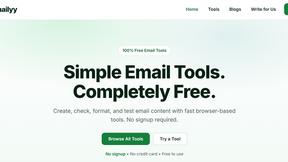
Free email tools for signatures, subject lines, HTML previews, word counts, and email headers. Browser-based, simple to use, and no signup required.

Uniclip
Clip pages, take full-page screenshots and batch-capture list data to Notion, Feishu, Obsidian, Markdown, CSV or JSON.
TroveKey
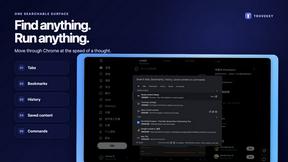
Search tabs, Chrome bookmarks and history, run browser commands, and save webpages and social posts locally—no account.
Todowing
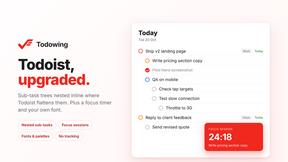
Chrome extension that shows nested sub-tasks inline in Todoist's Today, Upcoming, Filters, and Labels views. Free tier, $19.99 lifetime unlock.
LightScreen
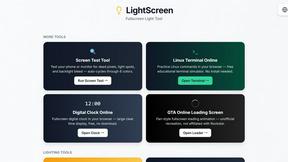
Free light screen tool online. Turn any display into a flashlight, ambient light, or solid-color screen. No download or sign-up.
FreeVideoGenerator
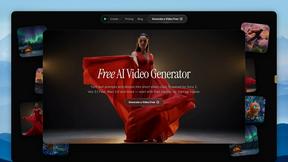
Free AI video generator: turn text prompts and photos into video clips with Sora 2, Veo 3.1, Wan and more. Free starter credits, no watermark download
Novastart
Apps and files on an infinite canvas where people and AI agents work together.